Over the last few weeks we have been rolling out a major account-security upgrade across Pantacor Hub — in the API and in the web UI at hub.pantacor.com.
Why we built this
Your Hub account is not just a profile. It owns devices and their update trails: whoever holds the account can deploy firmware and containers to every device you manage. That makes the account itself the most valuable target in the whole chain — worth protecting at least as well as the devices it controls.
Until now, a single password (or a linked social login) was all that stood in the way. The idea behind this release is to bring layered, standards-based authentication to Hub:
- A second factor on top of your password — something you have (an authenticator app or a hardware key) in addition to something you know, so a leaked or phished password is no longer enough to take over an account.
- Phishing-resistant, passwordless sign-in with passkeys — WebAuthn/FIDO2 credentials bound to the site, unlocked with your fingerprint, face or device PIN.
- Safe recovery paths — single-use recovery codes and re-authentication rules, so locking the door does not lock you out.
Everything is opt-in and managed from a single page. Here is a tour of what is new and how it works.
A new Security page
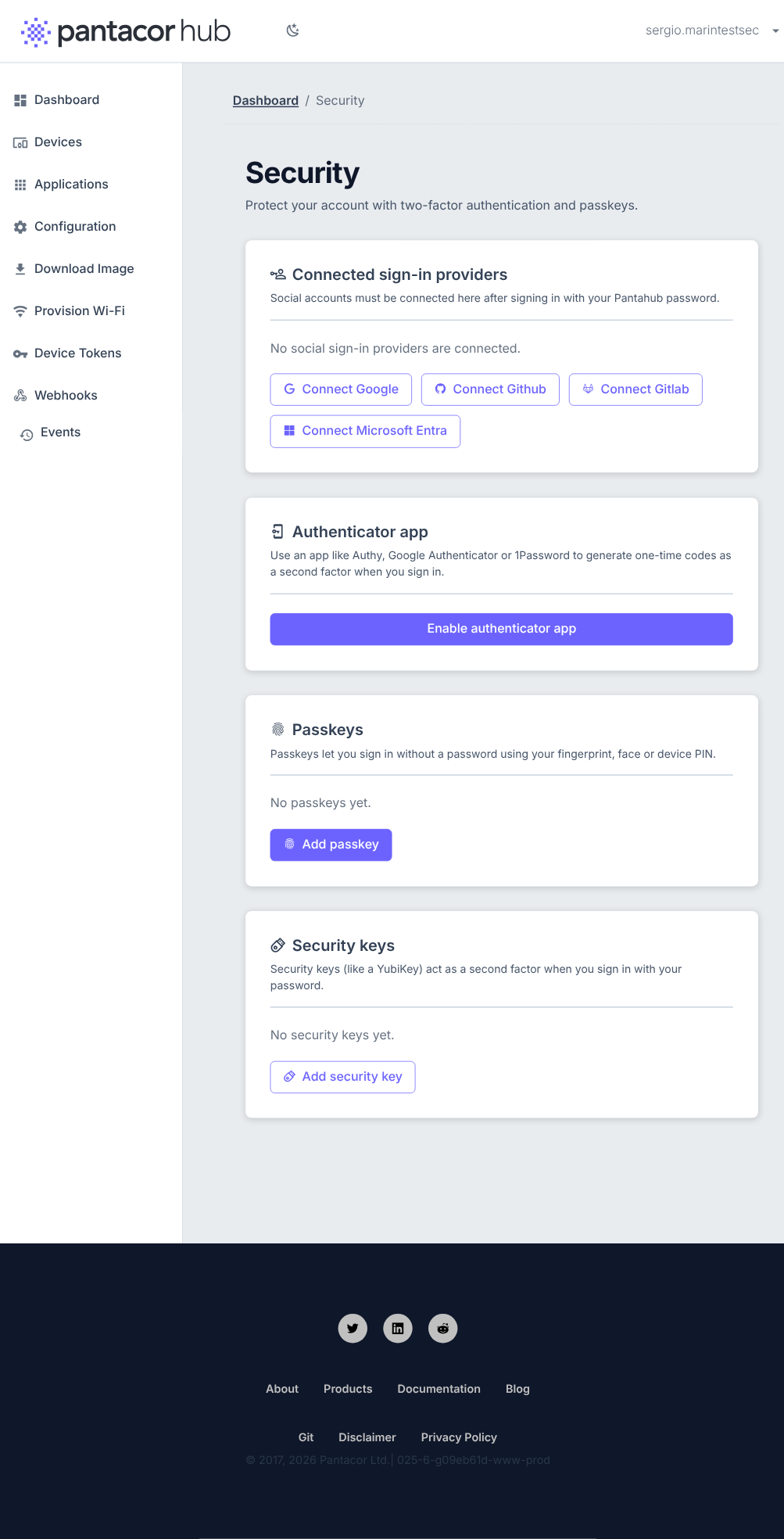
Everything now lives in one place: Settings → Security. From there you can manage your connected sign-in providers, enroll an authenticator app, add passkeys and hardware security keys, and manage your recovery codes.
Two-factor authentication with an authenticator app
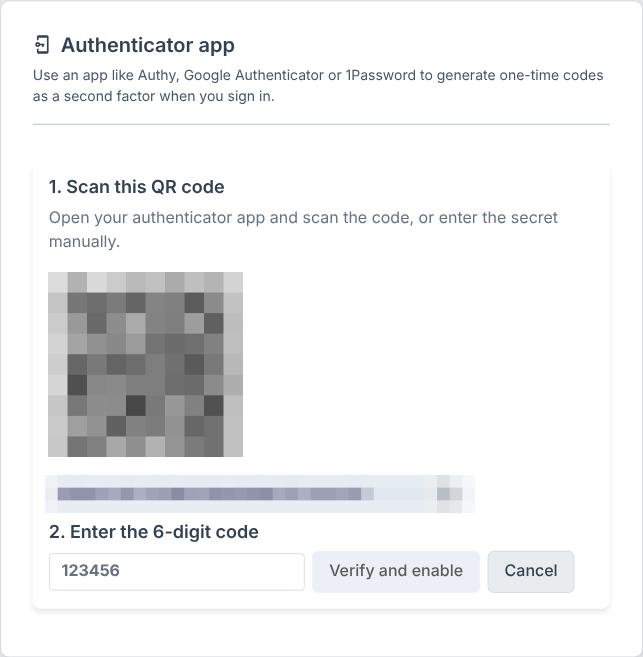
You can now protect your account with time-based one-time codes (TOTP) from any authenticator app — Authy, Google Authenticator, 1Password and friends. Enrollment is a small wizard: scan the QR code (or copy the secret manually) and confirm with a 6-digit code to switch it on.
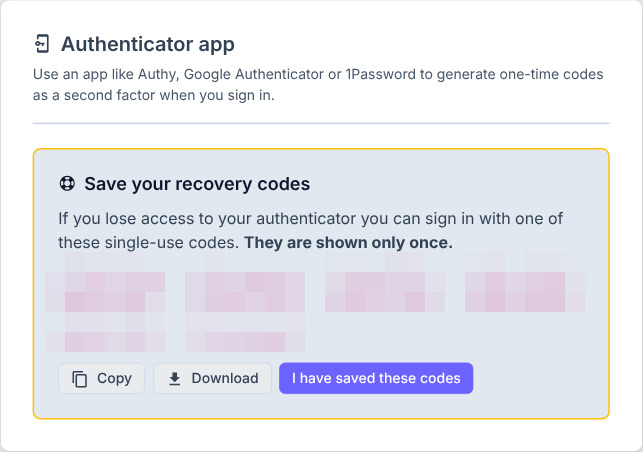
When two-factor is enabled you get ten single-use recovery codes, shown exactly once. Save them somewhere safe — if you ever lose your authenticator, one of these gets you back in. You can regenerate the set at any time from the Security page, which invalidates all the old codes.
Step-up sign-in
With two-factor enabled, your password alone no longer completes a sign-in. After the password check you are asked for a second factor: an authenticator code, a security key, or one of your recovery codes. This applies to social logins too — if you sign in with Google or GitHub and your Hub account has two-factor enabled, you still get the step-up prompt.

Passkeys — sign in without a password
Passkeys let you skip the password entirely and sign in with your fingerprint, face or device PIN. The login page has a new Sign in with a passkey button, and passkey autofill is wired into the username field, so browsers that support conditional UI will offer your passkey as you start typing. Passkeys are managed from the Security page (add, rename, remove), and separately you can register hardware security keys (like a YubiKey) to act as a second factor next to your password.

Connected sign-in providers
The Security page also shows which social sign-in providers (Google, GitHub, GitLab, Microsoft Entra) are connected to your account, and lets you connect or disconnect them. As a safeguard against account takeover, connecting a provider must be done from the Security page after signing in — and the OAuth connect flow carries its state in a signed parameter rather than cross-site cookies.
Re-authentication for sensitive changes
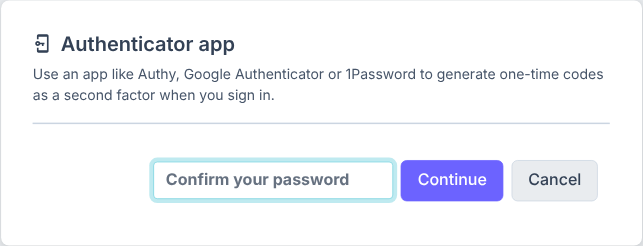
Any sensitive change — enrolling or disabling a factor, regenerating recovery codes, connecting a provider — asks you to confirm your password first. Accounts that have no password (social or passkey-only) re-prove an existing factor instead.
API hardening under the hood
The visible features are backed by several rounds of hardening in the Hub API:
- Passkeys and security keys are verified server-side via WebAuthn, and are accepted as a second factor on the token endpoints.
- A device can only post steps to its own trail.
- Stricter request validation — malformed bodies on create/update are rejected with clear errors instead of being half-accepted.
- User-provided data is auto-escaped in HTML emails.
- HTTP servers got read-header and idle timeouts, and secrets are compared in constant time.
Try it out
Sign in at hub.pantacor.com, open Settings → Security and switch on your second factor — it takes about a minute. The full step-by-step guide lives in the docs: Two-factor authentication & passkeys. Feedback and questions welcome below!
Note: the QR code, secret and recovery codes shown in the screenshots above were generated on a throwaway test account and have been invalidated (and blurred, belt and braces).