Pantacor Hub now includes a Terminal tab for opening a real SSH shell on a remote device — directly from your browser.
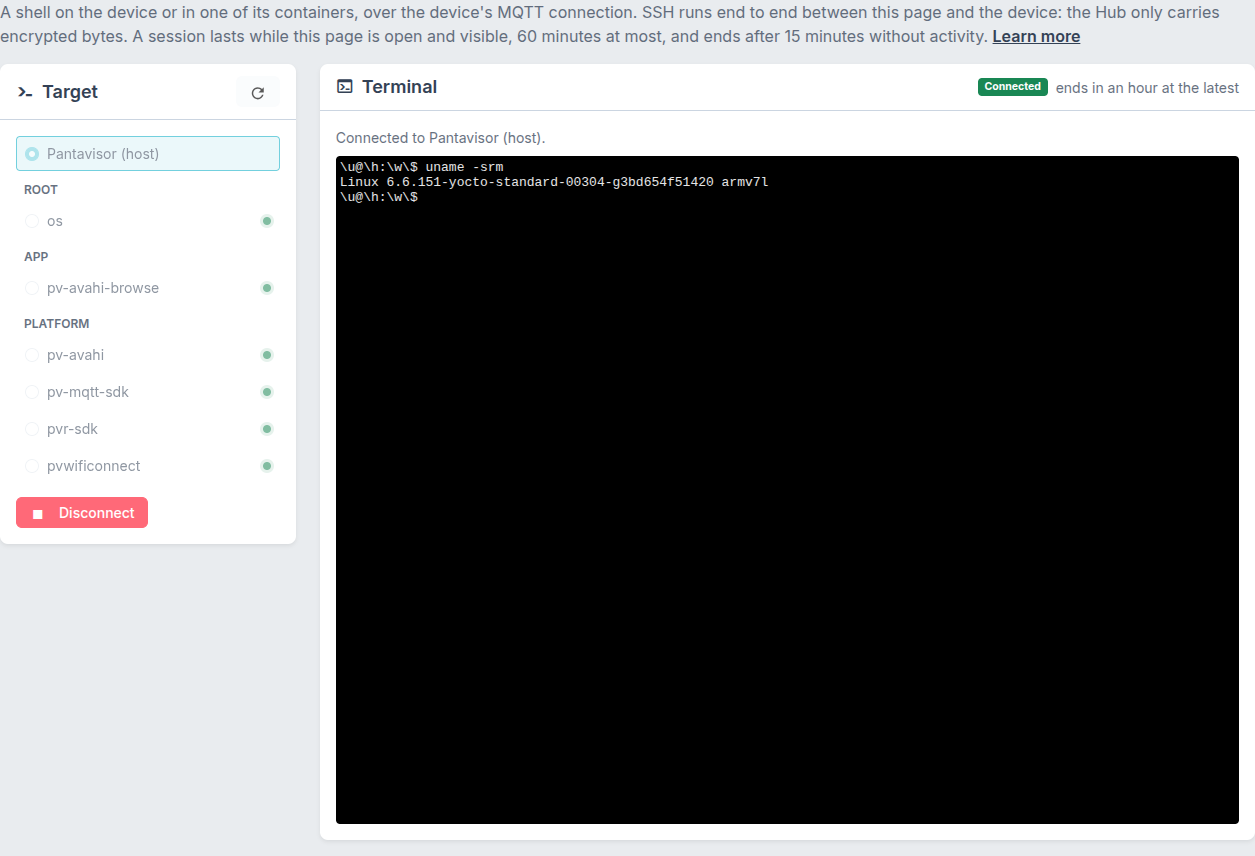
Choose Pantavisor (host) to work on the host, or pick a running container to enter its namespaces. This makes it easier to investigate a device while you’re already looking at its status and logs in the Hub.
Reach the device over its existing connection
The terminal uses the device’s existing MQTT connection to carry SSH traffic. You don’t need to expose an inbound SSH port to the internet or set up a VPN.
SSH runs between your browser and the device’s SSH server. The browser creates a temporary session key and keeps the private key locally; the Hub relays encrypted SSH traffic. The temporary authorized key is removed when the session ends.
Try it
- Sign in to Pantacor Hub and open a device you own.
- Choose Terminal, select the host or a running container, and press Connect.
- On your first connection, verify the displayed SSH host key fingerprint before choosing Trust and connect.
- Use the shell, then press Disconnect when you’re finished.
You’ll need an MQTT-connected device with an agent that supports web SSH, and Pantavisor’s SSH server must be enabled. If it is disabled, you can enable it from Pantavisor control.
Sessions expire after 15 minutes without traffic and have a one-hour maximum. Keep the tab visible while working: its connection lease expires about a minute after you switch away.
See the Terminal guide for setup, host key checks, and troubleshooting.
Give it a try and tell us how it fits into your remote debugging workflow!